---
title: Connect a domain
sidebarTitle: Overview
description: Add any domain you own to Reloop, configure DNS, verify authentication, and start sending email from your brand.
icon: globe
---
> For the complete documentation index, see [llms-docs.txt](/llms-docs.txt) or the site index [llms.txt](/llms.txt). Full docs corpus: [llms-full-docs.txt](/llms-full-docs.txt). Prefer markdown URLs (append `.md`) for agent consumption. Product skill: [skill.md](/skill.md).
Reloop can send and receive email for **any domain you control** (receiving and tracking are on by default for new domains; turn receiving off if you keep another inbox on that hostname). You do not need to buy the domain from Reloop. Register it anywhere, point DNS at the records Reloop shows you, and verify.
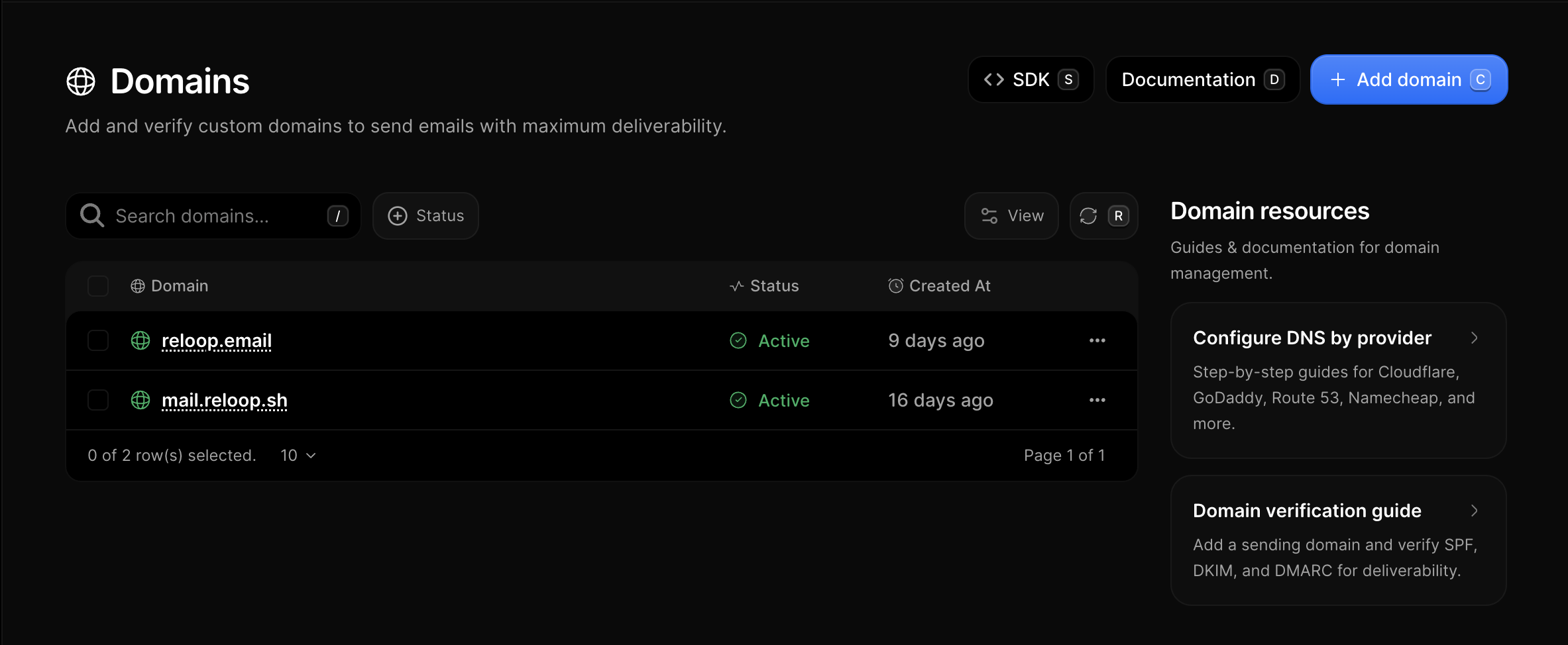
The [Domains](https://reloop.sh/dashboard/domain) page lists every sending domain in your organization, with status and shortcuts to DNS guides.
## What you will do
Open [Domains](https://reloop.sh/dashboard/domain) and click **Add domain**. Enter `example.com` or a subdomain like `mail.example.com`.
Reloop detects your nameservers when possible. If you are unsure who hosts DNS, see [Find your DNS provider](/docs/guides/connect-domain/find-dns-provider).
On the domain page, follow the banner Reloop shows for your DNS host (see below).
Click **Verify & finish** (setup) or **Verify Domain** (domain detail) to start checks. When status is **active**, you can send from that domain.
## Configuring DNS from the banner
After you add a domain, Reloop shows a banner based on the nameservers it detected.
- If the banner names your DNS host and offers **Auto populate**, click it. Approve the consent screen at your provider and Reloop’s records are written for you. More detail: [Auto populate](/docs/guides/connect-domain/auto-populate).
- If the banner does not offer Auto populate (or you prefer not to use it), copy the Type / Host / Value rows from the dashboard into your DNS panel. More detail: [Manual setup](/docs/guides/connect-domain/manual-setup) and the [DNS guides](/docs/guides/connect-domain/providers).
Either way, Reloop checks public DNS afterward and marks the domain verified when the records match.
## New to DNS?
Start here. You do not need to be a network engineer:
1. [What is a domain?](/docs/guides/connect-domain/what-is-a-domain)
2. [What is DNS?](/docs/guides/connect-domain/what-is-dns)
3. [Registrar vs DNS host](/docs/guides/connect-domain/registrar-vs-dns-host)
4. [Find your DNS provider](/docs/guides/connect-domain/find-dns-provider)
5. [DNS records Reloop needs](/docs/guides/connect-domain/dns-records-explained)
## Full map
- **Setup**: [Add a domain](/docs/guides/connect-domain/add-domain) · [What is a domain?](/docs/guides/connect-domain/what-is-a-domain) · [Sending vs receiving](/docs/guides/connect-domain/sending-vs-receiving)
- **DNS guides**: [All DNS hosts](/docs/guides/connect-domain/providers)
- **Verification**: [Statuses](/docs/guides/connect-domain/verification/statuses) · [Propagation](/docs/guides/connect-domain/verification/propagation)
- **Troubleshoot**: [Domain not verifying](/docs/guides/connect-domain/troubleshoot/not-verifying) and more
- **After connect**: [Test](/docs/guides/connect-domain/after/test-domain) · [Change DNS](/docs/guides/connect-domain/after/change-dns) · [Remove](/docs/guides/connect-domain/after/remove-domain)
Always copy values from your domain’s page in the Reloop dashboard. Examples in docs use placeholders; your DKIM key and hosts are unique to your domain.